Minimum Requirements
- Install Debian 12
- Install Dspace 8.1 (Click Here to Install Dspace 8.1 on Debian 12)
- Obtain a domain or a sub domain from your system administrator (in my case I use demo.kila.ac.in as my domain)
- Ask your system administrator to point that domain to your static ip where dspace is installed. In case if you installed the dspace in a local server at your institution ask your system administrator to point the domain to the static ip available at your institution and then ask him to point all hit coming to that static ip from your newly created domain may redirect to your Local server ip address where dspace is installed
- Execute the bellow steps in the local server to make the web site in https
Setup Apache2 as Reverse Proxy
To configure Apache2 as a reverse proxy on Debian 12, you’ll need to enable the necessary modules and set up a virtual host configuration
Install and enable apache2sudo apt install apache2 -ysudo systemctl enable apache2sudo systemctl start apache2
verify whether apache works properly on port 80
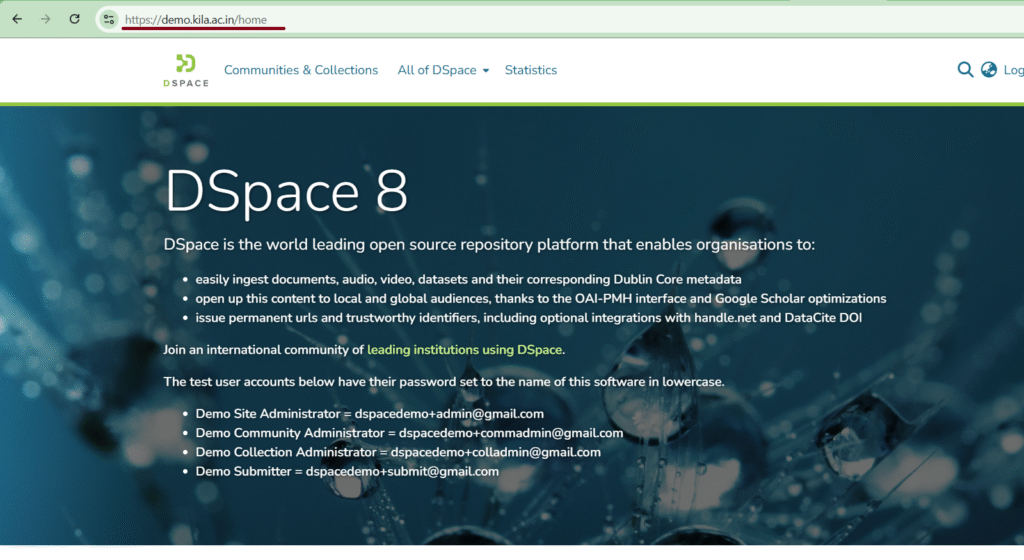
Try to open http://your-ip-address using your web browser
Enable required modes in Apache2sudo a2enmod proxy_http ssl headers rewritesystemctl restart apache2
We are Going to use Let’s Encrypt, a free, automated, and open certificate authority brought to you by the nonprofit Internet Security Research Group (ISRG). to make our Website Https
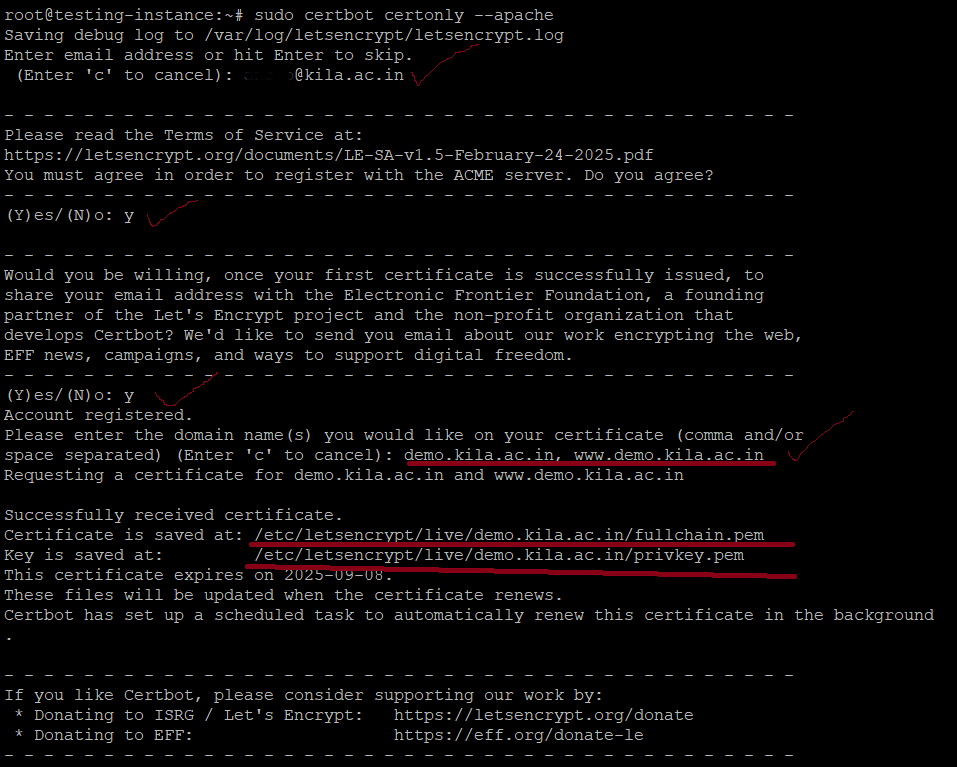
Use Certbot to configure SSL in your Server (Steps are for Debian 12)sudo apt update -ysudo apt install snapd -ysudo snap install coresudo snap refresh coresudo snap install --classic certbotsudo ln -s /snap/bin/certbot /usr/bin/certbotsudo certbot certonly --apache
After the last step it will ask for an email id for future communication you can give your library email id here and press enter
Then it will ask for terms and conditions and EFF Subscription type Y and Press Enter for Both
Then it will ask for a domain name you can give your domain name here and press enter( in my case demo.kila.ac.in, www.demo.kila.ac.in are the domains) if you are adding more domain please enter a coma and a space between the additional domains
It will create the certificate for the specified domain and you can see the certificate path on the screen . pl note the path. We need the path in our future configuration
Test the automatic renewal
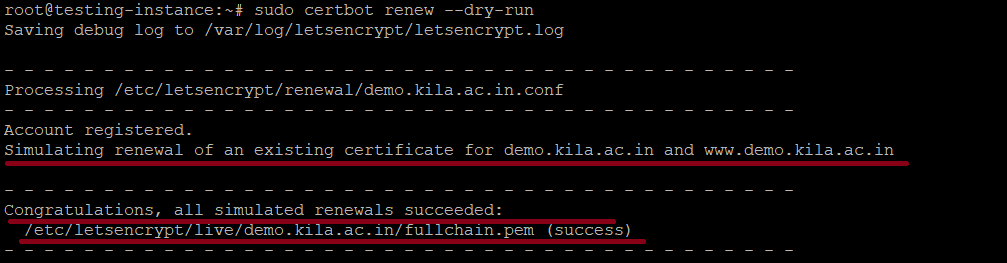
The Certbot packages on your system come with a cron job or systemd timer that will renew your certificates automatically before they expire. You will not need to run Certbot again, unless you change your configuration. You can test automatic renewal for your certificates by running this command:sudo certbot renew --dry-run
Restart apache2 Servicesudo systemctl restart apache2
Creating a Virtual Host in apache2 configuration to enable Apache2 as a reverse proxy for dspace in Debian 11 . Execute the bellow command
nano /etc/apache2/sites-available/dspace.conf
the above command will open a blank file . copy the bellow lines to that file and edit the content marked in red colour with your actual data and save it
<VirtualHost *:80>
     ServerName demo.kila.ac.in
ServerAlias www.demo.kila.ac.in
ServerAdmin abcd@kila.ac.in
     #automatic redirection from http to https
      Redirect / https://demo.kila.ac.in:4000
RewriteEngine on
#RewriteCond %{SERVER_NAME} =demo.kila.ac.in
#RewriteRule ^ https://%{SERVER_NAME}%{REQUEST_URI} [END,NE,R=permanent]
</VirtualHost>

<VirtualHost *:443>
     ServerName demo.kila.ac.in
ServerAlias www.demo.kila.ac.in
ServerAdmin abcd@kila.ac.in
     LogLevel warn
     ErrorLog ${APACHE_LOG_DIR}/demo.kila.ac.in.error.log
     CustomLog ${APACHE_LOG_DIR}/demo.kila.ac.in.access.log combined
     ProxyRequests on
     SSLEngine on
     SSLProxyEngine on

SSLCompression off
     SSLProtocol all -SSLv3 -TLSv1 -TLSv1.1
     SSLHonorCipherOrder          off
     SSLSessionTickets off
     ProxyPreserveHost             on
     RequestHeader     set X-Forwarded-Proto https

   <Proxy *>
       AddDefaultCharset Off
       Require all granted
   </Proxy>

# PROXY for backend. Keep only localhost here! not insert your domain name!
     ProxyPass       /server http://localhost:8080/server
     ProxyPassReverse /server http://localhost:8080/server

      # PROXY for frontend. Keep only localhost here! not insert your domain >
     ProxyPass / http://localhost:4000/
     ProxyPassReverse / http://localhost:4000/
#The Bellow SSL Configuration is for Certbot. Pl replace the Path using your actual path which we noted while creating ssl
#This Page is Created by Anoop P A, Technical Assistant, KILA, Kerala, anoop@kila.ac.in
     SSLCertificateFile /etc/letsencrypt/live/demo.kila.ac.in/fullchain.pem
     SSLCertificateKeyFile /etc/letsencrypt/live/demo.kila.ac.in/privkey.pem
        SSLCertificateChainFile /etc/letsencrypt/live/demo.kila.ac.in/chain.pem
     Include /etc/letsencrypt/options-ssl-apache.conf
</VirtualHost>
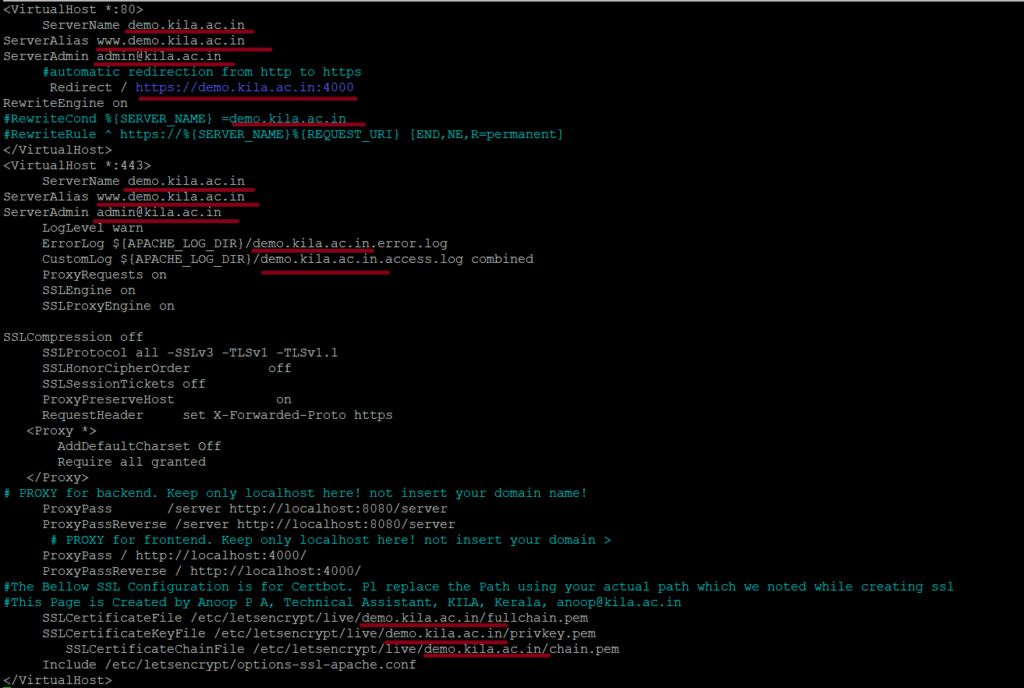
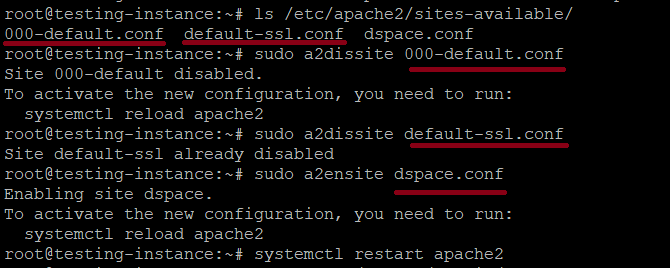
Next we need to Disable Default and unwanted Virtual hosts files of Apache. Don’t disable koha virtual host file if you plan to install koha and dspace in same server
To check available virtual hosts in your server, use the below commandls /etc/apache2/sites-available/
Disable the Unwanted Virtual Hostssudo a2dissite 000-default.confsudo a2dissite default-ssl.conf
Enable Dspace Virtual hostsudo a2ensite dspace.conf
Restart apache2systemctl restart apache2
Now we need to do some changes in dspace configuration
Edit the Backend configurationsudo nano /dspace/config/local.cfg
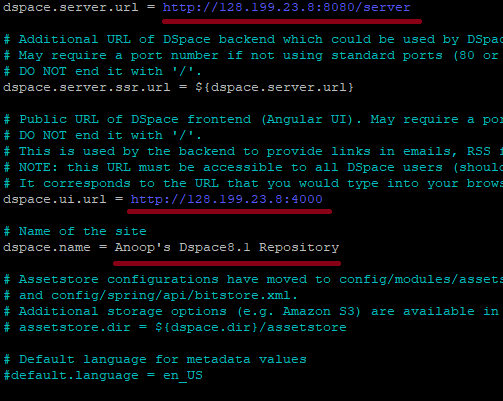
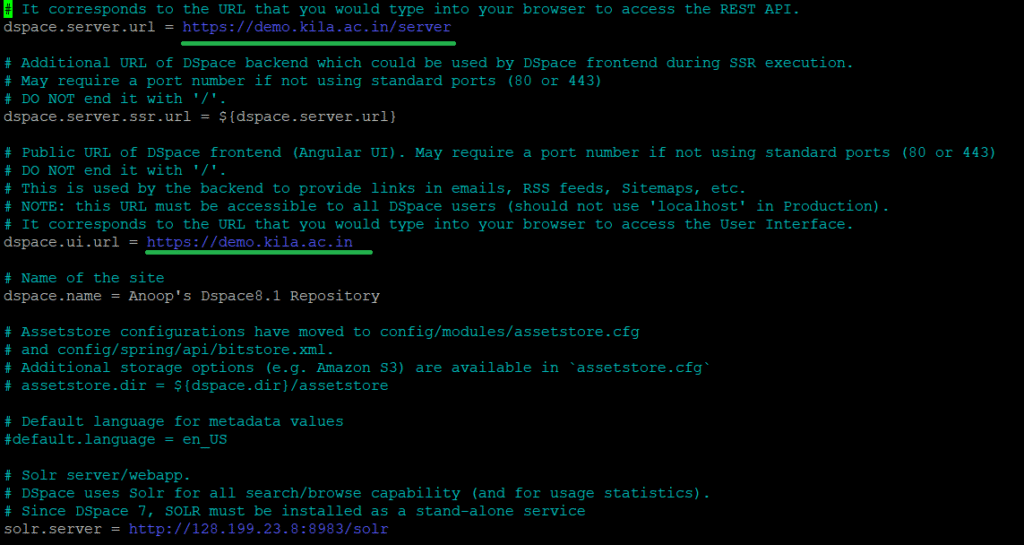
Edit the Bello Line marked in blue with your actual data and remove the data marked in red, change the address from http to https which is marked in green
dspace.server.url = http://demo.kila.ac.in:8080/server
dspace.ui.url = http://demo.kila.ac.in:4000
OLD screenshot before changing
New Screenshot After Change
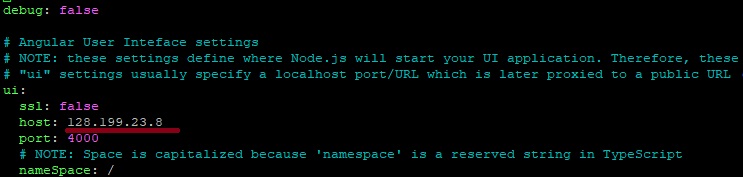
Edit the Front-End Production Configuration Filenano /home/dspace/dspace-angular-dspace-8.1/config/config.prod.yml
it will open a file in text editor in which change your ui host name from ip address to localhost and rest api ssl status from false to true and port address from 8080 to 443
File Before Change
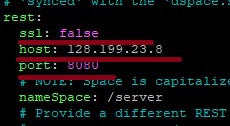
File After Change


Now the Last steps
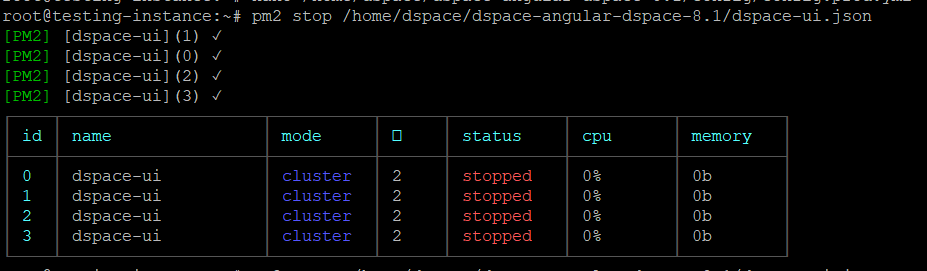
Stop the Frontend via pm2pm2 stop /home/dspace/dspace-angular-dspace-8.1/dspace-ui.json
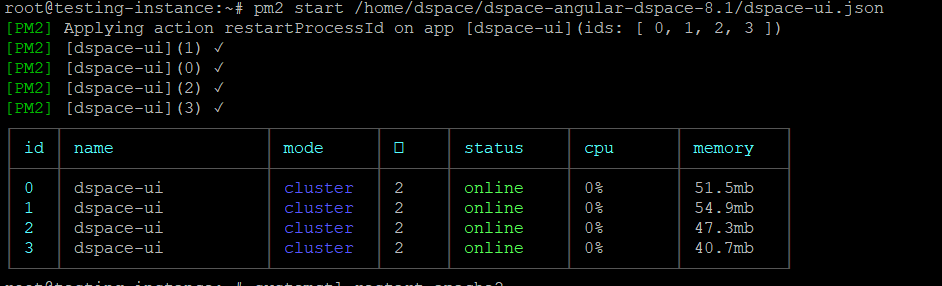
Start the front again using pm2pm2 start /home/dspace/dspace-angular-dspace-8.1/dspace-ui.json
Restart apache2systemctl restart apache2
Restart tomcat9systemctl restart tomcat10
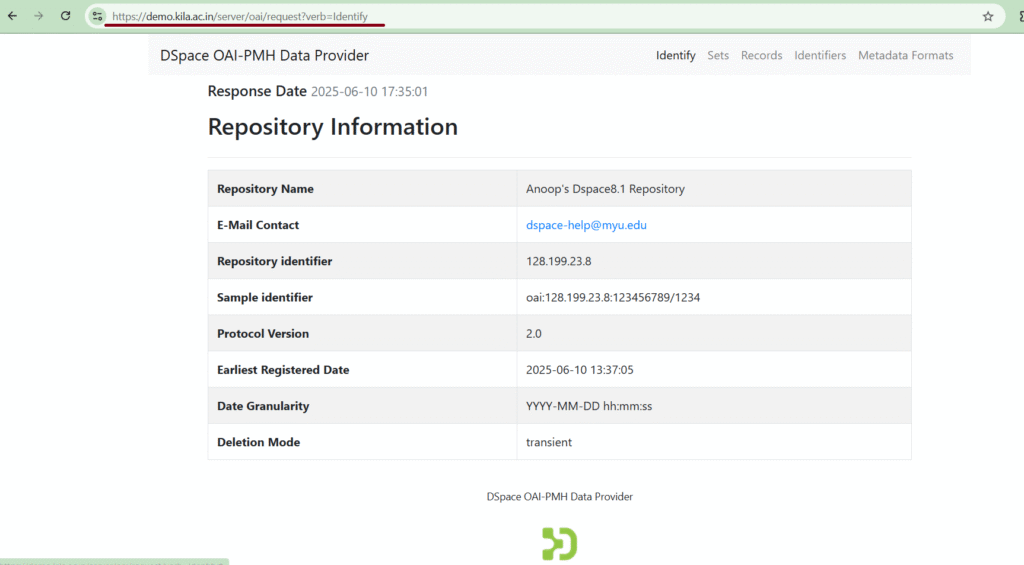
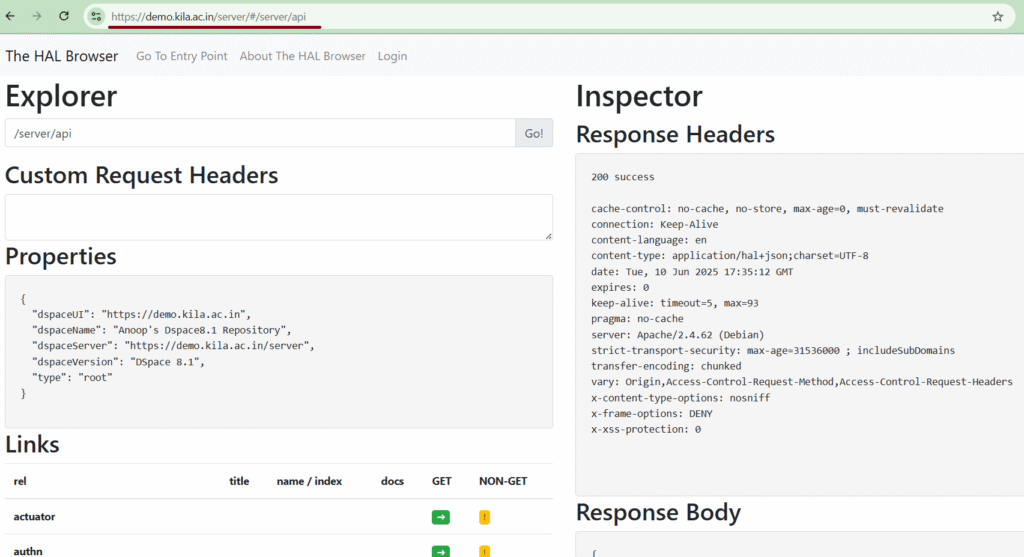
Now Browse the Pages with HTTPS
https://demo.kila.ac.in/server/oai/request?verb=Identify
https://demo.kila.ac.in/server/#/server/api
https://demo.kila.ac.in/